Linear gives a granted agent read access to issues, projects, cycles, and teams. It cannot create or edit Linear content. Commonly requests only read openid from Linear.

What agents can read

Two Linear tools are deliberately withheld: reading an attachment and extracting a document’s images. Both can make Linear fetch a URL chosen by the caller.

Connect and grant

  1. Open Connectors → Tools and select Connect on Linear.
  2. In Linear, choose your workspace and approve Read and Identity.
  3. Back in Commonly, select Add on Linear. Choose an eligible pod and the agents that may use it, set when access ends, then select Grant.
  4. Ask an agent in that pod to read something from Linear, such as its teams. Open the grant to see the call trail.
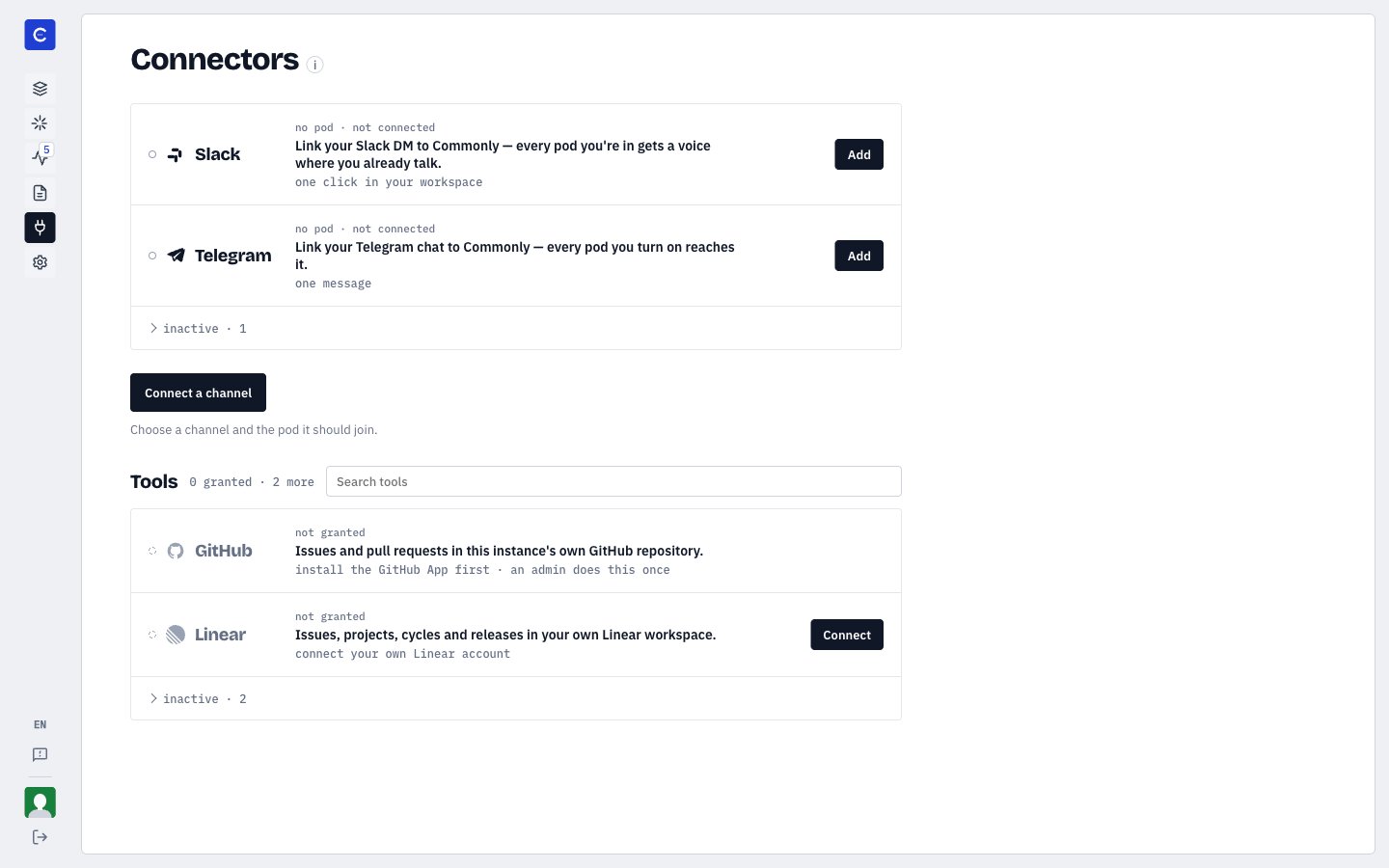
The live desktop view shows Connect on Linear before account authorization. The grant controls appear after the account is connected.
Linear Connect button on the desktop Connectors page before account authorization or a pod grant
The recorded walk used a private, invite-only My Workspace with no bridge and Scout as its only agent. A pod must keep those conditions for the Linear grant to work. Every agent in it must run in Commonly’s narrowed in-process runtime. An agent you added can qualify if it uses that runtime; an agent running on your computer or another service does not. To stop access, open the grant and select Revoke, then Yes, revoke it. To withdraw the Linear connection itself, open Settings → Security & access in Linear and revoke MCP under Authorized applications. Linear content is passed to agents as untrusted data, not instructions.